Open Graph Image Size: The Practical 2026 Guide
Use the right Open Graph image size, aspect ratio, format, and crawler checks so Slack, LinkedIn, X, and other previews can render clean cards.
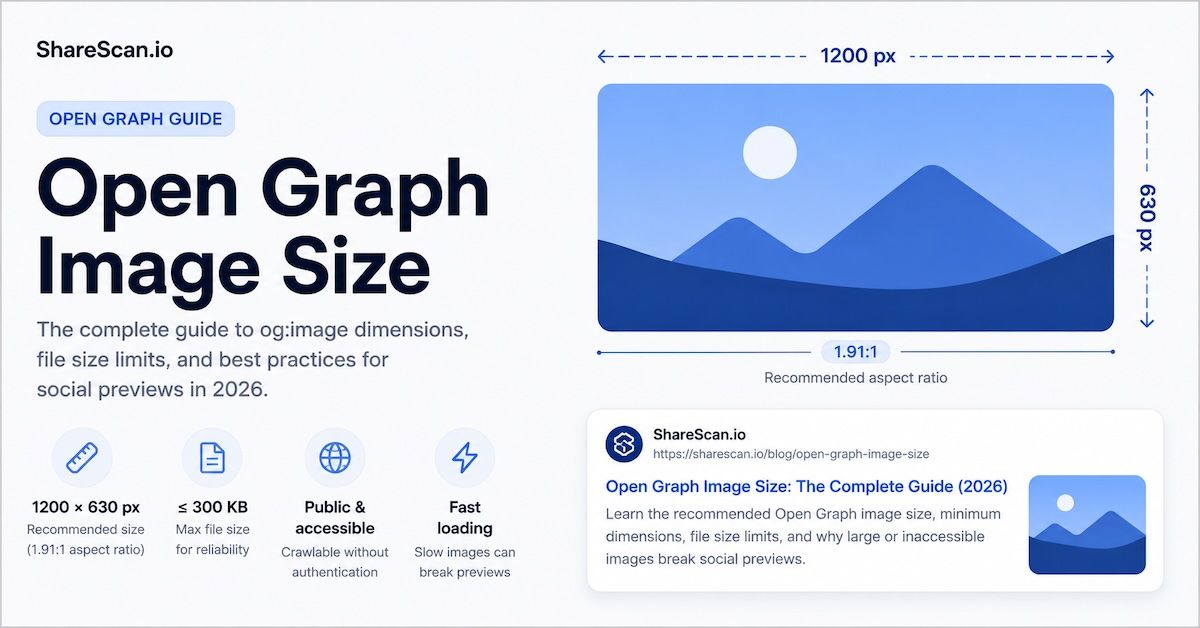
Open Graph image size sounds like a small production detail until the first link lands in Slack with a cropped logo, no image, or a preview from three releases ago.
The usual answer is simple: use a 1200 x 630 image. That is still the safest default for most websites because it gives crawlers a large, wide image without asking them to download a huge hero asset. But size is only part of the story. The image also needs to be reachable, fast, correctly declared, and present in the first HTML response a crawler sees.
This guide gives you the practical version: what to export, which tags to ship, and what to check when a preview still breaks.
The Short Answer
Use this as your default Open Graph image setup:
| Setting | Practical recommendation |
|---|---|
| Image size | 1200 x 630 pixels |
| Aspect ratio | 1.91:1 |
| Minimum safe design area | Keep text and faces away from the outer edges |
| Format | JPEG or PNG for maximum compatibility |
| File weight | Keep it under 1 MB when you can |
| URL | Absolute HTTPS URL |
| Metadata | Include width, height, type, and alt text |
That setup will not magically fix every platform cache, but it removes the most common reasons previews fail before the card is even built.
Why 1200 x 630 Is the Boring Good Default
Most share cards are wide rectangles. A 1200 x 630 image fits that pattern well: it is large enough to look sharp on modern screens, close to the common 1.91:1 preview shape, and small enough to compress cleanly without turning into a multi-megabyte payload.
You can use other dimensions. The Open Graph protocol does not say that 1200 x 630 is the only valid size. It says pages should provide an og:image, and it supports extra image properties such as width, height, type, secure URL, and alt text.
The reason 1200 x 630 keeps showing up in production checklists is less mysterious: it behaves well across Slack, LinkedIn, Facebook-style cards, CMS templates, and marketing workflows. Designers can create one asset. Engineers can validate one ratio. QA can spot obvious crop problems quickly.
The Tags That Help Crawlers Trust the Image
At minimum, the page needs a usable og:image in the HTML head. A better setup gives crawlers a little more context:
1<meta property="og:title" content="Example page title" />2<meta property="og:description" content="A short page summary." />3<meta property="og:type" content="article" />4<meta property="og:url" content="https://example.com/blog/example" />5<meta property="og:image" content="https://example.com/og/example.jpg" />6<meta property="og:image:secure_url" content="https://example.com/og/example.jpg" />7<meta property="og:image:type" content="image/jpeg" />8<meta property="og:image:width" content="1200" />9<meta property="og:image:height" content="630" />10<meta property="og:image:alt" content="Short description of the preview image" />11<meta name="twitter:card" content="summary_large_image" />12<meta name="twitter:image" content="https://example.com/og/example.jpg" />The structured image tags are worth adding because they remove guesswork. A crawler can still fetch the image and inspect it, but you have already told it what to expect.
If you include more than one og:image, remember that the first one matters most. The Open Graph protocol allows arrays by repeating the same property, and the first tag has priority when there is a conflict.
A Correct Size Can Still Fail
The most frustrating preview bugs happen when the image dimensions are right and the card still fails.
That usually means the problem is not the canvas size. It is the fetch path.
Check for these:
- The
og:imageURL is relative instead of absolute. - The image returns a redirect chain before the final file.
- The image needs cookies, a signed token, or a logged-in session.
- The response has the wrong content type.
- The file is much heavier than it needs to be.
- The image URL changes in the CMS, but the published page still points to the old URL.
- The tags are added by client-side JavaScript after the initial HTML response.
- The social platform cached an older version of the card.
That last one is common. If the source is clean but LinkedIn, Slack, or another channel still shows the old card, use the stale Open Graph image refresh checklist before changing the page again.
Separate the Preview Image from the Hero Image
A big editorial hero image is not always a good preview image.
The hero may be tall. It may have important text near the edge. It may be optimized for a page layout rather than a small card. It may also be much larger than a preview crawler needs.
Treat the Open Graph image as its own asset:
- Crop it intentionally for a wide card.
- Keep the subject centered.
- Avoid tiny text.
- Leave breathing room around logos and faces.
- Export a compressed version for sharing.
- Reuse a template so every article does not become a one-off rescue mission.
This is especially useful for product pages and CMS-driven blogs. Your page can keep the beautiful hero image, while og:image points to a clean card asset made for Slack, LinkedIn, X, and other preview surfaces.
What To Test Before Publishing
Do not stop after checking the page in a browser. Browsers are generous. Preview crawlers are more literal.
Before a launch, check:
- The final public URL returns a 200 response.
- The raw HTML includes
og:title,og:description,og:url, andog:image. og:urlmatches the canonical page you want people to share.- The image URL opens without authentication.
- The image returns the expected content type.
- The image is not oversized for a preview card.
- The card still makes sense when cropped.
- Slack, LinkedIn, and X-specific previews are not relying on old cached data.
You can start with the social preview testing hub if you want one workflow for Open Graph, Slack, LinkedIn, and X checks. For a single URL, the link preview checker is the quickest way to inspect tags, images, redirects, and fetchability in one pass.
Platform Notes Worth Knowing
Slack's own documentation says classic link unfurling starts when Slack spots a link, crawls it, and creates a preview. Slack also documents a Slackbot-LinkExpanding user agent that fetches metadata tags and then fetches referenced media files to check them. In other words: your HTML and your image URL both have to be reachable.
LinkedIn has a separate Post Inspector for refreshing a URL when an old cached image is showing. That can update the preview for new posts, but it does not rewrite previews already published with the same URL.
Those details are why a good image-size checklist should include cache and crawler behavior, not only pixel dimensions.
A Simple Production Rule
For most teams, this is enough:
Design a 1200 x 630 image, compress it hard enough that it loads quickly, serve it from a stable HTTPS URL, declare its width and height, and scan the final published page before the link goes into a campaign, launch note, or Slack channel.
That is not glamorous. It is just the version that saves the most cleanup later.
FAQ
1200 x 630 pixels is the safest default for most social preview cards. It gives you a wide 1.91:1 image that usually works well across Slack, LinkedIn, Facebook-style previews, and X large cards.
No. The Open Graph protocol requires an image URL for rich objects, and it supports structured properties such as width, height, type, secure URL, and alt text. The 1200 x 630 size is a practical cross-platform convention, not the protocol itself.
JPEG and PNG are the safest choices when compatibility matters. WebP can work in many places, but if the card is important, test the exact platform and crawler path before relying on it.
The image may be blocked, redirected, too heavy, stale in a platform cache, missing from the initial HTML, or served with an unexpected content type. Test the image URL separately from the page.
Usually, yes. If you do not need platform-specific creative, keeping `og:image` and `twitter:image` aligned makes QA and debugging simpler.
Related articles
- Link Preview Debugger: How to Find What Broke Before You ShareRead article
- Open Graph Image Not Updating? How to Refresh Stale Link PreviewsRead article
- Why Large og:image Files Break Social PreviewsRead article
- X Card Validator: What to Check When Twitter Cards Look WrongRead article
- Slack Unfurl Debugger: Why Your Link Preview Is MissingRead article
- Why Your og:image Is Not Showing (Slack, LinkedIn, or X)Read article
Put the guide into practice
Check the links your team shares.
Check preview images, titles and descriptions on up to 10 pages. Review the findings, then choose what to monitor.
No account or card. Choose weekly follow-ups by email or Slack after your scan.