Why Your og:image Is Not Showing (Slack, LinkedIn, or X)
You've set the og:image tag. The URL looks right. But when someone shares your page on Slack, LinkedIn, or X — nothing shows up. Here are the most common reasons why, and how to fix each one.
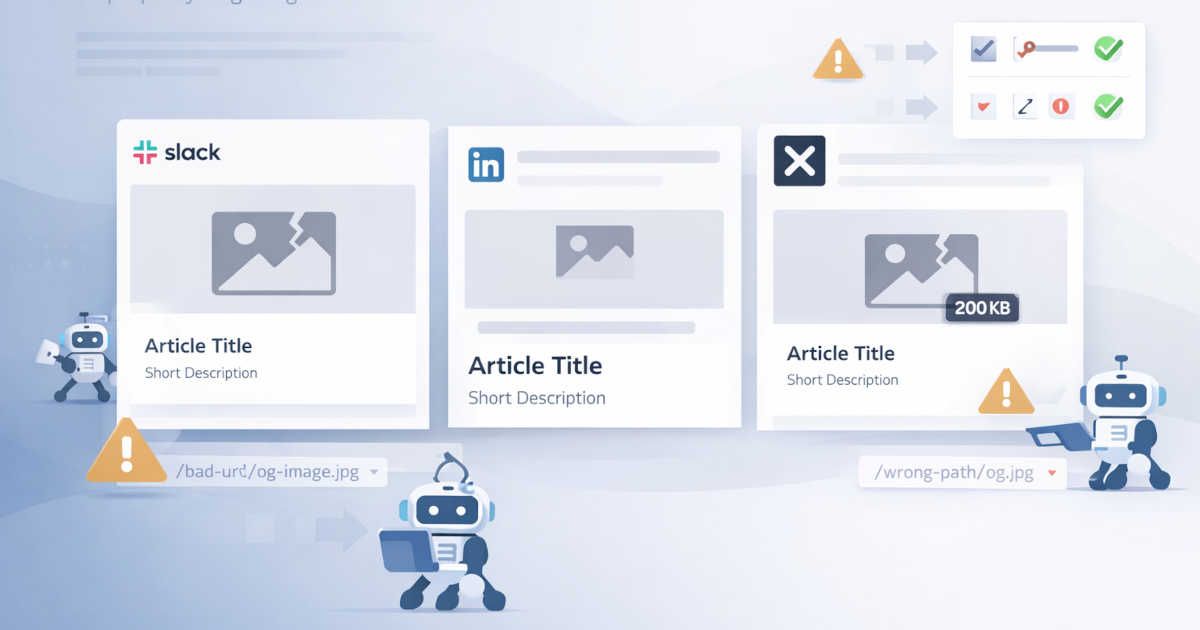
You've set the og:image tag. The URL looks right. You've even checked it in the browser.
Then someone shares the link on Slack. No image. Just a bare URL.
This is one of the most common metadata problems on the web — and it almost always has a fixable cause. The tricky part is that each platform (Slack, LinkedIn, X) has its own crawler, its own cache, and its own rules for what it will and won't display.
Here's a systematic breakdown of why your og:image isn't showing, platform by platform.
The og:image Tag Is Missing or Malformed
Before anything else: confirm the tag is actually in the HTML that crawlers see.
Open your page's source (not the browser-rendered DOM — the raw HTML returned by the server). Look for:
1<meta property="og:image" content="https://example.com/images/preview.jpg" />Common mistakes here:
- The tag uses
name="og:image"instead ofproperty="og:image". Most crawlers requireproperty. - The
contentvalue is a relative path (/images/preview.jpg) instead of an absolute URL. Crawlers don't resolve relative paths. - The tag is present in the JavaScript bundle but not in the server-rendered HTML. If your page uses client-side rendering, crawlers may never see it. (More on this below.)
The Image URL Returns an Error
The tag can be perfectly formed and still fail if the image itself isn't accessible.
Test the URL directly: paste it into a new browser tab. If it redirects, returns a 404, or requires authentication — the crawler will get nothing.
Things to check:
- Signed URLs or access-controlled assets. If your images are served from a CDN with signed URLs or behind an auth wall, crawlers can't fetch them. Use a publicly accessible URL for og:image.
- Redirects. Some crawlers don't follow redirects. Use the final destination URL.
- HTTPS vs HTTP. All three platforms require HTTPS. An HTTP image URL will be silently ignored.
- CORS headers. Some platforms check CORS. Ensure your image server allows cross-origin requests.
The Image Doesn't Meet Platform Requirements
Each platform enforces its own size and format rules. An image that works on one may fail on another.
Slack
- Minimum size: 200×200px
- Maximum file size: 5MB (in practice, keep it under 1MB for reliability)
- Supported formats: JPEG, PNG, GIF, WebP
- Slack's crawler is strict about file size. Large images are frequently skipped.
- Recommended size: 1200×627px
- Minimum width: 200px
- Maximum file size: 5MB
- LinkedIn will sometimes display a smaller image but crop it unpredictably. Use 1200×627 to be safe.
X (formerly Twitter)
- For
summary_large_image: 1200×628px recommended, minimum 300×157px - Maximum file size: 5MB
- X uses its own
twitter:imagetag, but falls back toog:imageiftwitter:imageis absent. - Animated GIFs are not supported for card images.
If your image is too large, too small, or in an unsupported format, the platform will silently drop it — no error, no warning.
The Page Uses Client-Side Rendering
This is the most common cause that teams miss.
If your page is built with a JavaScript framework (React, Vue, Angular, Next.js in CSR mode), the og:image tag may only exist in the DOM after JavaScript executes. Social crawlers don't run JavaScript. They fetch the raw HTML and parse it immediately.
The sequence looks like this:
- Crawler requests the page URL
- Server returns HTML — but og:image isn't in it yet
- Crawler parses the HTML, finds no og:image
- Preview renders without an image
The fix is server-side rendering (SSR) or static generation for your meta tags. The og:image tag must be present in the initial HTML response — not injected by JavaScript after load.
If you're on Next.js, use the generateMetadata function or the <Head> component with SSR. If you're on a CMS, confirm that meta tags are rendered server-side before the page is served.
The Platform Is Serving a Cached Version
Even after you fix the issue, the old (broken) preview may persist. All three platforms cache link previews aggressively.
To force a refresh:
- LinkedIn: Use the Post Inspector to re-scrape the URL.
- Facebook / Open Graph: Use the Sharing Debugger and click "Scrape Again."
- X: Use the Card Validator to re-fetch the card.
- Slack: Slack caches previews for a period of time. Posting the URL again in a new message usually triggers a fresh fetch. There is no manual cache-busting tool.
Cache is the reason many teams think their fix didn't work — when it actually did.
The og:image Tag Is Being Overridden
If you're using a CMS, a plugin, or a third-party SEO tool, there may be multiple og:image tags in your HTML. When that happens, crawlers typically use the first one — which may not be the one you intended.
Check your page source for duplicate og:image entries. If you find more than one, trace where each is coming from and remove the conflict.
This is especially common on:
- WordPress sites with multiple SEO plugins active simultaneously
- Headless CMS setups where both the CMS and the frontend framework inject meta tags
- Pages that inherit a site-wide og:image fallback and also set a page-specific one
Platform-Specific Quirks
Slack
Slack's crawler (Slackbot) is particularly sensitive to response time and file size. If your image server is slow or the file is large, Slack will time out and skip the image. Keep og:images under 500KB for Slack reliability.
Slack also re-fetches previews periodically. If you fix the issue, the corrected preview will eventually appear in older messages — but not immediately.
LinkedIn's crawler (LinkedInBot) can take several minutes to process a new URL. If you've just published, wait a few minutes before testing. Use the Post Inspector to confirm what LinkedIn is actually seeing.
LinkedIn is also strict about image aspect ratio. Images that deviate significantly from 1.91:1 may be cropped or not shown.
X
X supports two card types that affect image display: summary (small square image) and summary_large_image (large banner image). If you want the large image format, you must explicitly set:
1<meta name="twitter:card" content="summary_large_image" />Without this tag, X defaults to summary — which shows a small thumbnail, not the full-width image you may be expecting.
A Diagnostic Checklist
If your og:image isn't showing, work through this list:
- View the raw HTML source — confirm the tag is present with
property="og:image"and an absolute HTTPS URL - Load the image URL directly — confirm it's publicly accessible, returns 200, and is under 1MB
- Check dimensions and format — confirm the image meets the requirements for the platform you're testing
- Check for JavaScript rendering — if the tag is injected by JS, move it to server-rendered HTML
- Check for duplicate tags — remove any conflicting og:image entries
- Force a cache refresh — use the platform's debugger tool to re-scrape
- Wait and retest — LinkedIn and X can take a few minutes to process new URLs
How ShareScan Can Help
Manually checking og:image across Slack, LinkedIn, and X is tedious — especially when you're managing dozens or hundreds of pages.
ShareScan scans your pages and validates og:image tags automatically: checking that the tag is present, the URL is reachable, the image meets platform-specific size and format requirements, and that there are no duplicate or conflicting tags.
If something breaks after a deploy — a template change, a CMS migration, a CDN configuration update — ShareScan catches it before your team notices it in Slack.
See how it works at sharescan.io.
Related articles
TRY SHARESCAN
Run a free 10-URL scan on your pages
Paste a few URLs (or a domain/sitemap) and run the same metadata checks we use for social preview QA and regression monitoring.
No signup for your first scan. Open the report, review issues, then connect Slack if you want alerts.
After scan completion, connect Slack and send a test report.
Up to 10 URLs. We will dedupe and validate automatically. Prepared 0 / 10 unique URLs.