Why Your og:image Is Too Large (and How to Fix Broken Social Previews)
When you share a link on LinkedIn, Twitter, or Slack, a preview card appears — but only if the image behind it meets strict size and format requirements. Here's why large images are often the culprit when previews fail.
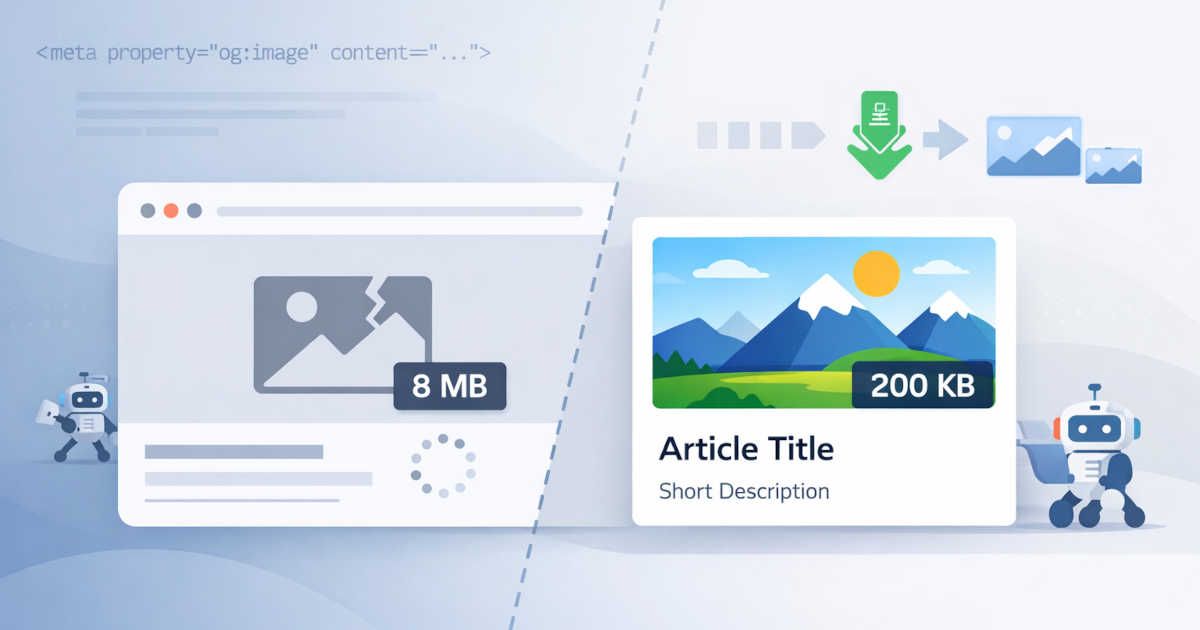
When someone shares a URL on social media or in a messaging app, the platform fetches the page and renders a link preview card: typically a thumbnail image, a title, and a short description.
Done well, these cards dramatically increase click-through rates. Done poorly — or not at all — the link appears as a bare URL that most people scroll past.
These previews rely on Open Graph metadata, a set of <meta> tags placed in a page’s <head>. One of the most important tags is og:image, which defines the image that appears in the preview card.
In theory this is simple. In practice, oversized images are one of the most common reasons social previews fail to render.
This guide explains why large images break link previews, what platform limits you need to know, and how to fix the issue.
How Social Link Previews Work
Most social platforms generate previews using the Open Graph protocol or Twitter/X Cards.
When a link is shared:
- A crawler fetches the page
- It reads metadata from the HTML
- It downloads the image specified in
og:image - It renders the preview card
Example metadata:
1<meta property="og:title" content="Article title">2<meta property="og:description" content="Short article description">3<meta property="og:image" content="https://example.com/social-image.jpg">If the crawler cannot fetch or process the image, the preview may render incorrectly — or not appear at all.
Why Oversized Images Break Social Previews
Social media crawlers are not full web browsers.
They operate under tight limits:
- limited bandwidth
- strict timeouts
- maximum file size restrictions
When a crawler encounters an image that is too large, one of several things happens:
- the crawler times out before the image finishes downloading
- the image is rejected due to platform file size limits
- the preview renders with a broken image placeholder
The tricky part is that none of this is visible to the publisher.
The page loads perfectly in a browser, but the preview fails when someone shares the link.
Platform Limits You Need to Know
Each platform sets different requirements for preview images.
Facebook / Open Graph
- Maximum file size: 8 MB
- Recommended size: under 1 MB
- Recommended dimensions: 1200 × 630 px
- Supported formats: JPG, PNG, static GIF
Twitter / X Cards
- Maximum file size: 5 MB
- Recommended dimensions: 1200 × 628 px
- Minimum dimensions: 300 × 157 px
- Supported formats: JPG, PNG, WebP, GIF
- Maximum file size: 5 MB
- Recommended dimensions: 1200 × 627 px
- Supported formats: JPG, PNG
Slack, iMessage, and WhatsApp
Messaging platforms use their own crawlers and tend to be slightly more forgiving.
However, images larger than 2–3 MB frequently fail to render, especially in Slack link previews.
| Platform | Max file size | Recommended Size |
|---|---|---|
| 8 MB | 1200×630 | |
| Twitter/X | 5 MB | 1200×628 |
| 5 MB | 1200×627 | |
| Slack | ~2–3 MB reliable | 1200×630 |
Practical rule of thumb
For reliable previews across all platforms:
- dimensions: 1200 × 630 px
- file size: under 1 MB
- ideal range: 100–300 KB
The Hidden Cost of Modern Photography
In practice, many social images exceed platform limits without anyone noticing.
A photo taken on a modern smartphone or DSLR often weighs 4–12 MB straight out of the camera.
Design workflows can make this worse:
- Figma exports at high quality
- Photoshop exports at print resolution
- CMS uploads skip compression
- images are resized visually but not optimized
The result is a beautiful hero image that renders perfectly on the page — but silently breaks every social preview.
Common Sources of Oversized Social Images
Oversized og:image files typically originate from a few common workflows.
Blog hero images uploaded directly from a phone
Content editors often upload images directly from their camera roll without compression.
Product images exported for print
Design teams sometimes export assets at poster or print resolution.
Event banners created for posters
Large banner graphics (A2, A3) are reused as social preview images without resizing.
CMS pipelines without automatic optimization
If your CMS does not automatically compress images, large uploads can easily slip through.
It's Not Just File Size
While file size is the most common issue, several other factors can break social previews.
Wrong aspect ratio
Images that are too tall or too narrow may be cropped badly or rejected.
Incorrect MIME type
A file saved as .jpg but encoded as PNG can confuse crawlers.
Broken or relative URLs
The og:image tag must use an absolute URL, not a relative path.
Correct example:
https://example.com/images/social-preview.jpg
Incorrect example:
/images/social-preview.jpg
Slow server response
Even a correctly sized image may fail if the server takes too long to respond.
Most crawlers expect responses within 2–3 seconds.
How to Check If Your og:image Is the Problem
The fastest way to diagnose broken previews is to use dedicated validation tools.
These tools simulate the crawler used by each platform.
Facebook Sharing Debugger
Shows what Facebook's crawler sees and reveals metadata errors.
Twitter Card Validator
Displays how the link preview will render on X.
LinkedIn Post Inspector
Validates Open Graph tags and preview images for LinkedIn.
ShareScan.io
Checks image dimensions, file size, format, and metadata across multiple platforms in a single scan.
These tools will tell you:
- whether the crawler fetched the image successfully
- the detected file size
- whether the preview meets platform requirements
How to Fix an Oversized og:image
If an image exceeds platform limits, the solution is straightforward.
Follow these steps:
- Resize the image to 1200 × 630 px
- Compress the file
- Use a modern format if possible
- update the
og:imageURL - revalidate the page
Recommended tools for compression include:
- Squoosh
- ImageOptim
- built-in CMS image pipelines
Target file sizes:
- JPEG: under 300 KB
- PNG: under 500 KB
Most modern platforms also support WebP, which provides significantly better compression.
Metadata QA Checklist for Social Preview Images
Before publishing content, run through this quick checklist:
og:imagetag exists- image URL is absolute
- image loads with HTTP 200
- image size is under 1 MB
- dimensions are close to 1200 × 630
- server responds within 2 seconds
Automating these checks in CI pipelines can prevent broken previews at scale.
Preventing Broken Social Previews
The best way to avoid issues is to catch them before publishing.
Engineering teams often implement safeguards such as:
- maximum upload limits in the CMS
- automatic image compression pipelines
- Open Graph validation in CI/CD
- automated metadata scanners
Running a quick validation before publishing ensures the preview will render correctly when the link is shared.
Frequently Asked Questions
The most common causes are: - the image file is too large - the og:image tag is missing - the image URL is incorrect - the crawler timed out while fetching the image Checking the page with a preview debugger usually reveals the issue immediately.
A widely recommended size is: 1200 × 630 pixels This aspect ratio works well across most social platforms.
Typical limits include: Facebook: 8 MB Twitter/X: 5 MB LinkedIn: 5 MB However, staying under 1 MB ensures the highest reliability across platforms.
Yes. Supported formats usually include: - JPG - PNG - WebP - GIF (static) WebP often provides the best compression while maintaining image quality.
Final Thoughts
A broken social preview is easy to miss but costly in terms of engagement.
Because social sharing is often a primary distribution channel for blog posts, product pages, and marketing content, ensuring that previews render correctly is worth the effort.
By optimizing image size, validating Open Graph metadata, and building checks into your publishing workflow, you can ensure that every shared link displays the preview you intended.
Related articles
TRY SHARESCAN
Run a free 10-URL scan on your pages
Paste a few URLs (or a domain/sitemap) and run the same metadata checks we use for social preview QA and regression monitoring.
No signup for your first scan. Open the report, review issues, then connect Slack if you want alerts.
After scan completion, connect Slack and send a test report.
Up to 10 URLs. We will dedupe and validate automatically. Prepared 0 / 10 unique URLs.