Social preview monitoring for content & web teams

Find broken preview metadata before it goes unnoticed.

Follow the images, titles and descriptions behind your shared links. Recurring checks help your team find missing assets and metadata issues as pages change.

Start with a free scan. No account or credit card. Then choose weekly follow-ups by email or Slack for up to 10 report pages.

Paste a page, a domain, or up to 10 URLs, one per line.

A clear place to start

See the issue. Find the page. Follow up.

  1. Check the sourceInspect titles, descriptions and images in the metadata your pages serve.
  2. Review the findingsOpen affected pages and use the issue details to decide what needs fixing.
  3. Check again after changesRun another scan after a fix, or set up recurring checks for the pages that matter.

Previews are based on fetched metadata. Slack, LinkedIn and X may show a different or cached card.

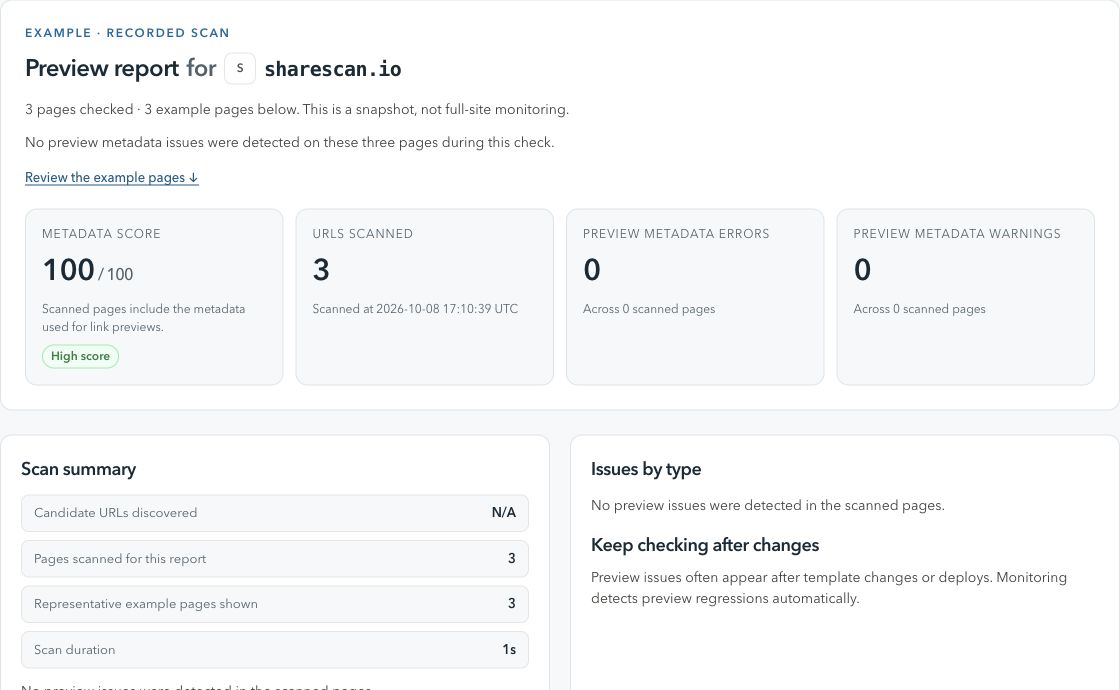
ShareScan / Preview reportActual product view
A ShareScan report showing a metadata score, checked pages and findings from a scan of sharescan.io.
A real scan of sharescan.io, captured 8 October 2026. A dated snapshot of three pages, not a live status.

From finding to fix

What to check and how to follow up.

Check 01

What makes a social preview look broken

A shared link can lose trust quickly when the card has no image, the wrong title, stale copy, or a confusing destination.

Why it happens

  • Missing or unreachable preview image metadata.
  • Titles and descriptions changed by CMS or template updates.
  • Redirects, canonicals, or crawler access rules changing after launch.

What to do next

  • Run a free scan to see current preview and metadata issues.
  • Fix source metadata and crawler accessibility before campaign traffic scales.
  • Connect Slack to set up monitoring for pages that keep changing.
Check 02

Why broken previews cost more after launch

Preview problems are most visible when links are already in ads, newsletters, sales threads, or partner posts.

Why it happens

  • Launch pages keep evolving after the first QA pass.
  • Content and engineering changes can affect shared templates without obvious page changes.

What to do next

  • Prioritize campaign, product, pricing, and high-traffic content URLs.
  • Use monitoring to catch regressions after deploys and CMS edits.
  • Send alerts to Slack so ownership stays close to the work.
Check 03

How to build a safer preview workflow

Manual preview checks are useful, but they are easy to skip when releases move quickly.

Why it happens

  • No shared baseline for what changed between scans.
  • No clear notification path when previews break after publish.

What to do next

  • Use one scan as the baseline for current source metadata.
  • Continue setup in Slack for URLs that need ongoing attention.
  • Add CMS or deploy-triggered scans where page changes are frequent.

When your team needs broader coverage

Bring recurring checks into your publishing workflow.

Create a workspace and verify your domain to schedule scans, manage URLs and connect CMS or GitHub Actions triggers. The Free workspace plan covers up to 100 pages.

Before you start

A few useful details.

What is a broken social preview?

It is a shared link card that renders with a missing image, wrong image, weak or stale copy, bad destination, or metadata issue that hurts trust.

Can ShareScan guarantee how every platform displays my link?

No. Platforms control final rendering and caches. ShareScan detects source metadata issues and helps you monitor regressions.

Which pages should I monitor first?

Start with campaign pages, launch pages, product pages, pricing pages, and evergreen content that keeps getting shared.

How do I move from scan to monitoring?

Run a free scan, review the report, then choose and confirm optional follow-ups by email or Slack.

Explore a related check

More ways to keep previews in view.