Social preview monitoring for content & web teams

Get a clear signal when preview issues need attention.

Start with a scan of the pages your team shares. Choose follow-ups by email or Slack, or use a verified workspace for scheduled scans, history and broader coverage.

Start with a free scan. No account or credit card. Then choose weekly follow-ups by email or Slack for up to 10 report pages.

Paste a page, a domain, or up to 10 URLs, one per line.

A clear place to start

See the issue. Find the page. Follow up.

  1. Check the sourceInspect titles, descriptions and images in the metadata your pages serve.
  2. Review the findingsOpen affected pages and use the issue details to decide what needs fixing.
  3. Check again after changesRun another scan after a fix, or set up recurring checks for the pages that matter.

Previews are based on fetched metadata. Slack, LinkedIn and X may show a different or cached card.

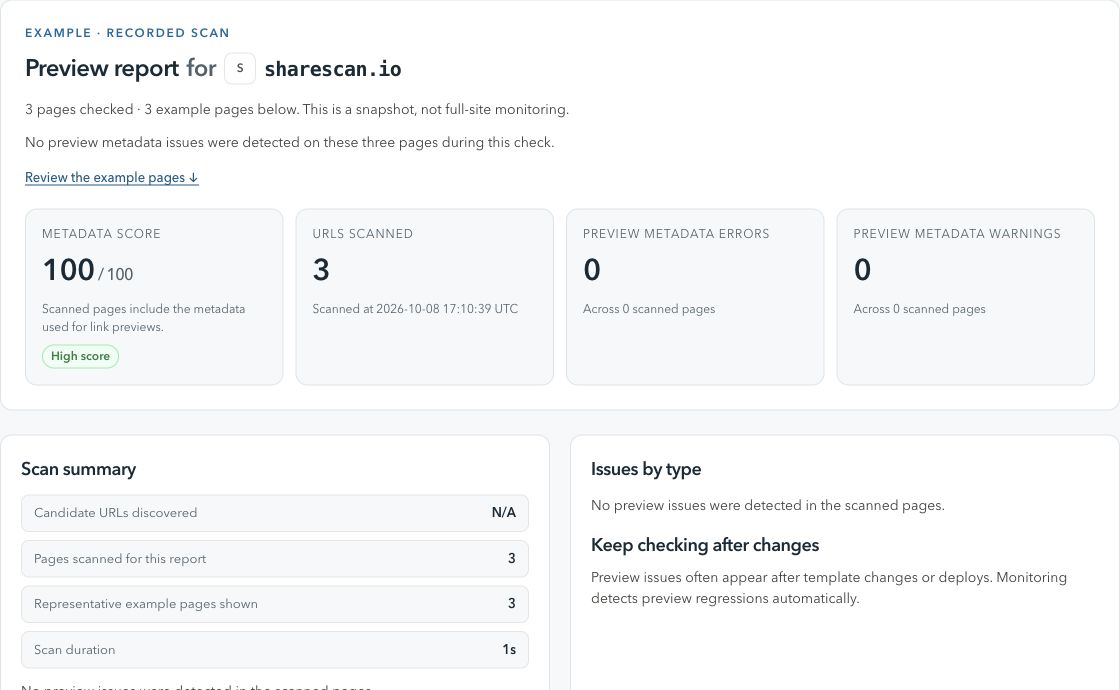
ShareScan / Preview reportActual product view
A ShareScan report showing a metadata score, checked pages and findings from a scan of sharescan.io.
A real scan of sharescan.io, captured 8 October 2026. A dated snapshot of three pages, not a live status.

From finding to fix

What to check and how to follow up.

Check 01

What preview alerts help catch

Broken link previews can appear after the first QA pass, especially when campaigns and launches keep changing.

Why it happens

  • Deployments changing shared Open Graph or Twitter Card templates.
  • CMS edits removing required titles, descriptions, or preview images.
  • Page changes that alter canonical URLs, redirects, or image assets.

What to do next

  • Scan your first URL free to see the current preview and metadata state.
  • Choose weekly follow-ups by email or Slack from the report for up to 10 report pages.
  • Use alerts to catch broken preview images and metadata regressions later.
Check 02

Give preview issues a clear owner

Preview problems need a clear owner when launch traffic, campaign links, or customer conversations are already moving.

Why it happens

  • Marketing, content, and engineering teams often work in different tools.
  • Preview issues are easy to miss until someone shares a broken link.

What to do next

  • Choose email or Slack follow-ups for report pages, or configure schedules in a verified workspace.
  • Send preview alerts where the people responsible for fixes already work.
  • Keep the scan report as the baseline for what was broken before monitoring setup.
Check 03

When to use alerts instead of a one-time checker

A checker is useful before publishing, but alerts are better when the same links keep changing over time.

Why it happens

  • Campaign landing pages get edited after launch.
  • Product pages inherit metadata changes from shared templates.
  • CMS and deploy workflows can affect previews without touching page copy.

What to do next

  • Use the free scan before launch to catch obvious issues.
  • Set up recurring checks for links that continue receiving traffic.
  • Verify your domain when you need scheduled scans and broader URL coverage.

When your team needs broader coverage

Bring recurring checks into your publishing workflow.

Create a workspace and verify your domain to schedule scans, manage URLs and connect CMS or GitHub Actions triggers. The Free workspace plan covers up to 100 pages.

Before you start

A few useful details.

Do alerts start as soon as I connect Slack?

No. Connecting Slack sends setup instructions so you can continue configuring monitoring, choose what to monitor, and activate alerts from Slack.

What kinds of preview issues can alerts help with?

Alerts are meant for metadata regressions such as missing preview images, changed Open Graph or Twitter Card fields, and link preview issues that appear after deploys, CMS edits, or page changes.

Can ShareScan control how social platforms render my link?

No. ShareScan scans your page metadata, detects issues, and helps route alerts. Final rendering and cache behavior are controlled by each social or messaging platform.

Can I scan before setting up alerts?

Yes. Scan your first URL free and review the report. Then choose optional email or Slack follow-ups, or create a workspace for broader coverage.

Explore a related check

More ways to keep previews in view.