Open Graph Checker vs Monitoring: Which Do You Need?
When is a manual preview check enough? A practical look at broken image URLs, shared templates, and the pages worth checking again after a deploy.
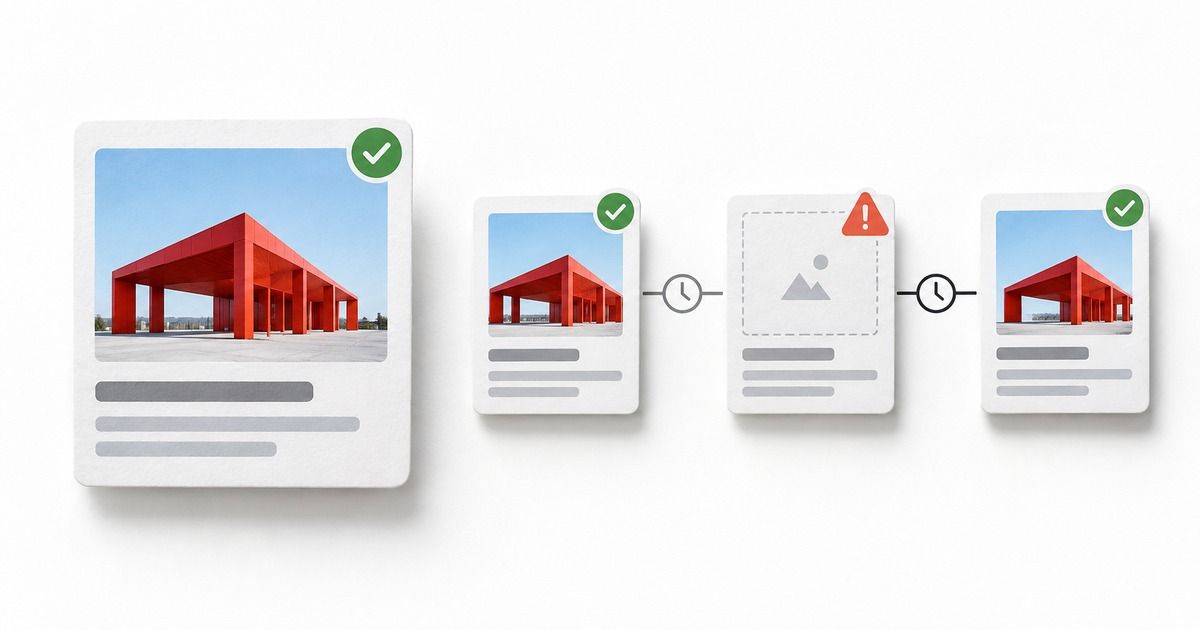
If you're fixing one broken link preview, start with a checker. You don't need to configure a monitoring service to find out whether a page is publishing an image URL.
The harder question comes after the fix. Who checks that URL when the next CMS edit or deployment changes what it serves?
That's where monitoring becomes useful. The decision has less to do with the size of your website than with how it changes. A small campaign site with frequent template updates can need more attention than a much larger site that rarely changes.
Start with the URL that's actually failing
Suppose a product link has no image when you share it. There are several different problems that can produce that result.
The page might have no og:image tag. It might contain the right tag but point to a deleted asset. Or the image URL might redirect to an HTML error page that returns a successful HTTP status. Looking only for the tag won't distinguish those cases.
ShareScan checks the image URL's HTTP response and content type as well as the page's metadata. That distinction matters when assigning the fix: an empty CMS field and a CDN serving the wrong response are different jobs.
A technically valid image can still be the wrong one. A checker doesn't know that the spring campaign finished last month, or that the picture belongs to another product. Compare the reported image and copy with what you meant to publish.
For a single affected URL, this is usually the right sequence: inspect the result, fix the field or asset, and scan the published page again. Then check the preview in the platform you're using. If LinkedIn is still showing an old card, our LinkedIn preview troubleshooting guide covers the next checks.
A passing check doesn't survive a template change
An Open Graph checker reports on the response it fetched. It cannot tell you what a later version of the page will return.
Consider a product template that uses a dedicated share image when one exists and falls back to the product photograph otherwise. Testing one product with a dedicated image tells you nothing about whether the fallback works. A refactor could break the fallback while leaving the page you tested looking fine.
That is an example of why monitoring needs a considered URL list, not just a recurring timer. Scan the variations that can fail differently.
The trigger matters too:
| What changes | What to check | When to check it |
|---|---|---|
| An editor replaces a CMS image | The published page and its new image URL | After the change is live |
| A deploy changes a shared template | Pages using each affected template or fallback | After deployment |
| An image host or redirect rule changes | Important pages using that host or redirect | After the change, with scheduled checks between releases |
ShareScan supports scheduled scans, GitHub Actions integration, and CMS webhook triggers. Those integrations need configuration. A CMS-triggered check also needs to run after the new page is actually available; a publish event can arrive before a separate frontend build has finished.
The post-deploy checklist and CMS preview guide go further into those two workflows.
If a named person already checks a few rarely edited pages after every change, keep doing that. Monitoring is most useful when that manual habit no longer covers the way your team publishes.
Pick different templates, not just more URLs
For a first scan, choose pages that answer distinct questions. Does the homepage use the intended brand image? Does the pricing page have its own title? Does a product without a custom share image get a usable fallback?
A useful small set could include your homepage, pricing page, an active campaign, a recent article, and two product pages: one with a custom share image and one without. For a multilingual site, add a translated page rather than another nearly identical product.
You don't have to fill all ten slots. Six deliberately chosen pages can expose a failure that ten pages using the same content path miss. A clean sample still doesn't prove that the rest of the site is healthy.
When several pages fail in the same way, look for what they share before editing them individually. A missing field in the template may be the cause. When only one page fails, compare its content with a working page on the same template. These are starting points for investigation, not diagnoses the scan can make for you.
Decide who gets the next report
A recurring scan is only useful if someone acts on the result. Before adding more URLs, agree where reports go and who handles them.
For example, a content owner may be able to fix an empty share-image field. An image endpoint returning an error may need the team responsible for hosting. Keep the affected URL and the failed check in the handoff so the next person doesn't have to reconstruct the problem from a screenshot.
To use ShareScan monitoring, create a workspace, verify domain ownership, and choose the URLs to monitor. Connect Slack and send a test report to confirm delivery. Then set your schedule and any deployment or publishing triggers you need. Running a public scan does not turn on this setup automatically.
There are limits worth keeping in mind. A failure can occur between scheduled scans. Social platforms also control their own caches and card rendering, so a successful check doesn't guarantee an immediate preview update.
Already responsible for a site that changes often? Create your ShareScan workspace and start with the pages your team shares most.
For a one-off problem, check the affected URLs first. The report should help you decide what needs fixing today and which pages you want checked again after the next change.
Related articles
Put the guide into practice
Check the links your team shares.
Check preview images, titles and descriptions on up to 10 pages. Review the findings, then choose what to monitor.
No account or card. Choose weekly follow-ups by email or Slack after your scan.