Slack Unfurl Debugger: Why Your Link Preview Is Missing
A practical Slack unfurl checklist for missing previews, stale cards, private pages, crawler access, Open Graph metadata, and preview image failures.
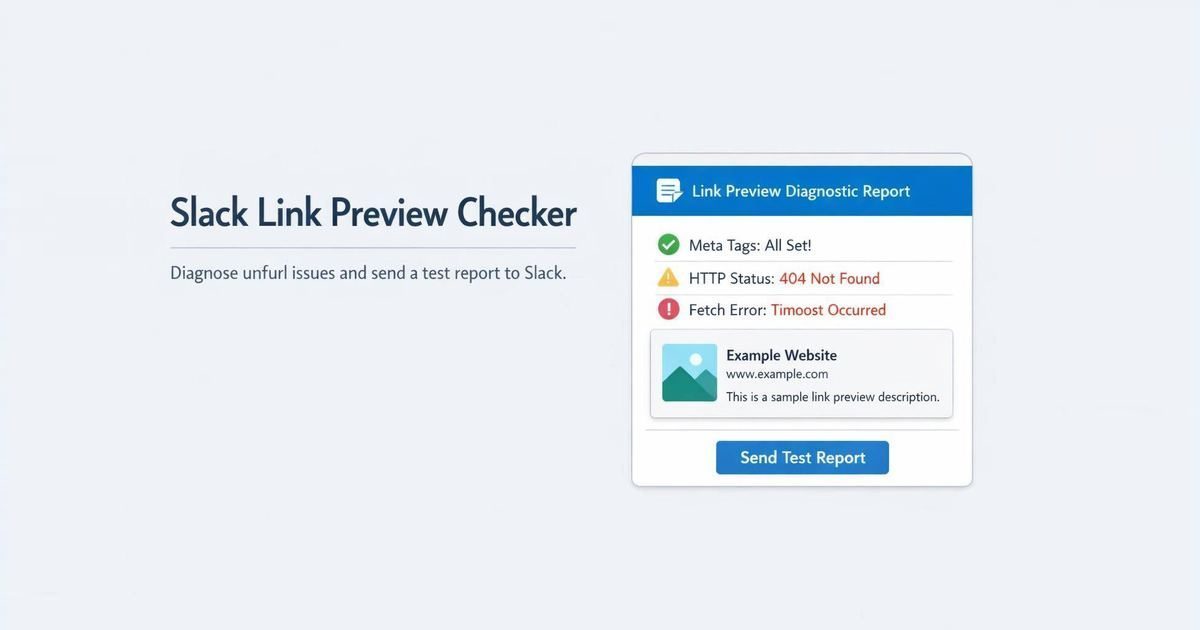
Slack link previews are useful because they are quiet. A good unfurl gives the channel just enough context: title, summary, image, domain, and a clue that the link is worth opening.
That is also why broken previews get noticed. A campaign link lands as bare text. A product page shows an old image. A docs link has no preview at all. The page may still load perfectly in a browser, but Slack is reading a narrower version of the world: the URL, the first HTML response, the preview metadata, the image URL, and whatever Slack already cached.
Use this checklist when a Slack unfurl is missing, stale, or showing the wrong card.
First, rule out Slack message behavior
Not every missing unfurl starts in your HTML. Sometimes Slack chooses not to expand the link because of the message context.
Check these first:
- Was the same link recently posted in the same conversation?
- Does the message contain more than five links?
- Is the page private, password-protected, or behind login?
- Did the pasted URL include
http://orhttps://? - Is the link pointing to media hosted by a service Slack may not preview?
- Has the user or workspace disabled certain preview preferences?
If one of those is true, metadata changes may not help. You can have a perfect og:image and still get no preview because Slack decided not to expand that message.
Then inspect the source metadata
For classic link previews, Slack crawls the URL and builds a preview from common metadata. Start with the final public URL and inspect the raw HTML.
At minimum, check:
1<title>...</title>2<meta property="og:title" content="..." />3<meta property="og:description" content="..." />4<meta property="og:image" content="https://example.com/preview.jpg" />5<meta property="og:url" content="https://example.com/final-page" />The common trap is relying on client-side rendering. If the tags only appear after JavaScript runs, your browser may look fine while Slack receives thin HTML. The fix is not to tweak the copy. The fix is to put the preview metadata in the server-rendered response Slack can fetch.
Run the URL through the Slack link preview checker to see the resolved title, description, image, redirects, canonical URL, and metadata issues before you paste the link into a channel again.
Treat the image as a separate failure point
Slack can read the page and still fail to show the image.
Open the og:image URL directly and ask boring questions:
- Does the image URL return 200?
- Is it public without cookies?
- Is the URL absolute?
- Is the file reasonably small?
- Does the response use the right content type?
- Is the image served from a CDN path that allows crawler traffic?
- Does the crop still make sense in a card?
If your CMS generates preview images, this is worth checking after publish, not only in draft mode. Image pipelines change quietly. A missing fallback image can turn one template edit into hundreds of weak Slack previews.
Separate cache from current output
Slack may keep showing a card from an earlier fetch. That is frustrating, but it is not the same problem as broken metadata.
Work in this order:
- Scan the final public URL.
- Confirm the live HTML has the right title, description, image, and canonical.
- Confirm the image URL is reachable.
- Test the link in a clean Slack context.
- Only then treat the remaining mismatch as cache behavior.
If the live page is still wrong, no debugger can make Slack show the right card reliably. Fix the source first.
When the source is correct but Slack keeps showing the old image, move over to the stale Open Graph image checklist. That is usually a cache or URL-variant problem, not a reason to rewrite the page metadata from scratch.
Watch redirects and canonicals
Slack previews often go sideways when the pasted URL and the canonical URL tell different stories.
For example:
- the pasted URL redirects through a campaign tracker
- the final page has a different canonical host
og:urlpoints to a non-canonical variant- trailing slash behavior differs between the CMS and app router
- old slugs redirect to a page with unrelated metadata
One clean redirect is usually fine. A chain of URL variants makes debugging harder because Slack may cache the preview against a URL your team is no longer looking at.
Use Slack-specific checks after CMS edits
CMS edits are a common source of preview regressions because the person changing the page often does not think of themselves as changing metadata.
After important publishes, check:
- page title
- Open Graph title
- description
og:image- canonical URL
- redirect status
- image fetchability
For the team workflow, the best moment to catch this is right after publish. Not two hours later, when the link has already moved through a launch channel.
When to automate the check
Manual Slack preview debugging is fine for one URL. It is not enough for a site where templates, product data, and campaign assets change every week.
Automate checks for:
- launch pages
- product pages
- high-traffic blog posts
- docs pages shared in support channels
- pages updated by CMS webhooks
- templates that generate metadata for many URLs
The goal is not perfection. The goal is to catch the avoidable failures: missing image, broken image URL, stale title, bad canonical, blocked crawler, or a template change that stripped preview metadata.
FAQ
Slack may skip a preview when the page is private, the URL is missing a scheme, the message has too many links, the same link was recently posted, preview preferences are disabled, or the page has no usable preview metadata.
The live page may still point to the old image, or Slack may be serving a cached unfurl. Check the raw HTML and image URL first. If both are correct, test again in a clean context.
For classic link previews, Slack crawls the URL and uses common preview metadata such as Open Graph tags. Make sure the tags are present in the initial HTML response.
Slack may be able to fetch the page but not the image. Check whether og:image is absolute, public, fast, correctly typed, and not blocked by CDN or security rules.
Scan the final public URL, confirm Open Graph metadata and image fetchability, then test the link in Slack after the production publish or deploy.
Related articles
- Open Graph Image Not Updating? How to Refresh Stale Link PreviewsRead article
- Why Slack link previews break after CMS changesRead article
- Link Preview Debugger: How to Find What Broke Before You ShareRead article
- Why Your og:image Is Not Showing (Slack, LinkedIn, or X)Read article
- Open Graph Image Size: The Practical 2026 GuideRead article
Put the guide into practice
Check the links your team shares.
Check preview images, titles and descriptions on up to 10 pages. Review the findings, then choose what to monitor.
No account or card. Choose weekly follow-ups by email or Slack after your scan.